Tracking and Analytics
Vev takes an agnostic approach to analytics and does not directly track visitors on Vev-created content or pages. However, we offer tools and methods to help you implement your preferred tracking solutions. This can be done through our hosting integrations or by using event tracking as described in this article.
Integration
To implement event-based tracking, you need to listen for all Vev tracking events. This is done by listening for the vev.track event on the window object. Once captured, you can forward the event data to your preferred tracking tool, internal data repository, or any similar system.
window.addEventListener('vev.track', (e) => {
const event = e.detail;
console.log('event', event);
});Example: Adobe Analytics Implementation
window.addEventListener('vev.track', (e) => {
const event = e.detail.data;
// Example: Send to Adobe Analytics
alloy('sendEvent', {
type: event.type,
data: {
...event.data,
vevProjectKey: event.metaData.projectKey,
vevPageKey: event.metaData.pageKey,
},
});
});Event data structure
Vev offers two methods for creating tracking events: standard events and interaction-based event tracking. The data object is unique to each event type, while metaData remains consistent across all events.
| Key | Description |
|---|---|
| type string | A string to identify the event |
| data object | Specific data for the event. |
| metaData object | projectKey string pageKey string timestamp number |
Standard events
| Type | Description | Data object |
|---|---|---|
| VEV_PROJECT_LOAD string | Dispatches when the project loads | projectKey string projectName string breakpoint string |
| VEV_PAGE_LOAD string | Dispatches when the page load | pageKey string pageName stringprojectKey string breakpoint string |
| VEV_LINK_CLICK string | Dispatches when an external link is clicked | url string |
| VEV_VIDEO_PLAY string | Dispatches when an video is started | videoUrl string totalPlayTime number (seconds) percentagePlayed number (percentage) |
| VEV_VIDEO_STOP string | Dispatches when an video is stopped or paused | videoUrl string totalPlayTime number (seconds) percentagePlayed number (percentage) |
| VEV_VIDEO_END string | Dispatches when an video is fully played. | videoUrl string totalPlayTime number (seconds) percentagePlayed number (percentage) |
| VEV_VIDEO_PROGRESS string | Dispatches the progress of a video in seconds. | videoUrl string videoName string progress number (seconds) totalPlayTime number (seconds) percentagePlayed number (percentage) |
| VEV_AI_ELEMENT string | Dispatches on every user interaction inside an AI-generated element (click, toggle, submit, …). | component string action string triggerType string label string (optional) …further context keys, always string |
AI elements
Every element built with Element AI reports its interactions through the single
VEV_AI_ELEMENT event, so one listener rule covers all of them. What the visitor did is
described in the data object rather than in the event name:
window.addEventListener('vev.track', (e) => {
if (e.detail.type !== 'VEV_AI_ELEMENT') return;
const { component, action, triggerType, ...context } = e.detail.data;
// component: 'AiSlideshow' — which element it came from
// action: 'nextSlideClicked' — what the visitor did
// triggerType: 'click' — click | toggle | submit | change | select
// context: any further detail the element supplies, e.g. label, index
// Forward wherever your analytics lives:
window.dataLayer?.push({ event: 'vev_ai_element', component, action, triggerType, ...context });
});e.detail.metaData carries projectKey, pageKey and timestamp on every event, exactly as
it does for the other standard events.
The event is silent while the element is being designed in the editor, and fires normally in Preview and on published pages — so authoring clicks never reach your analytics.
Custom events
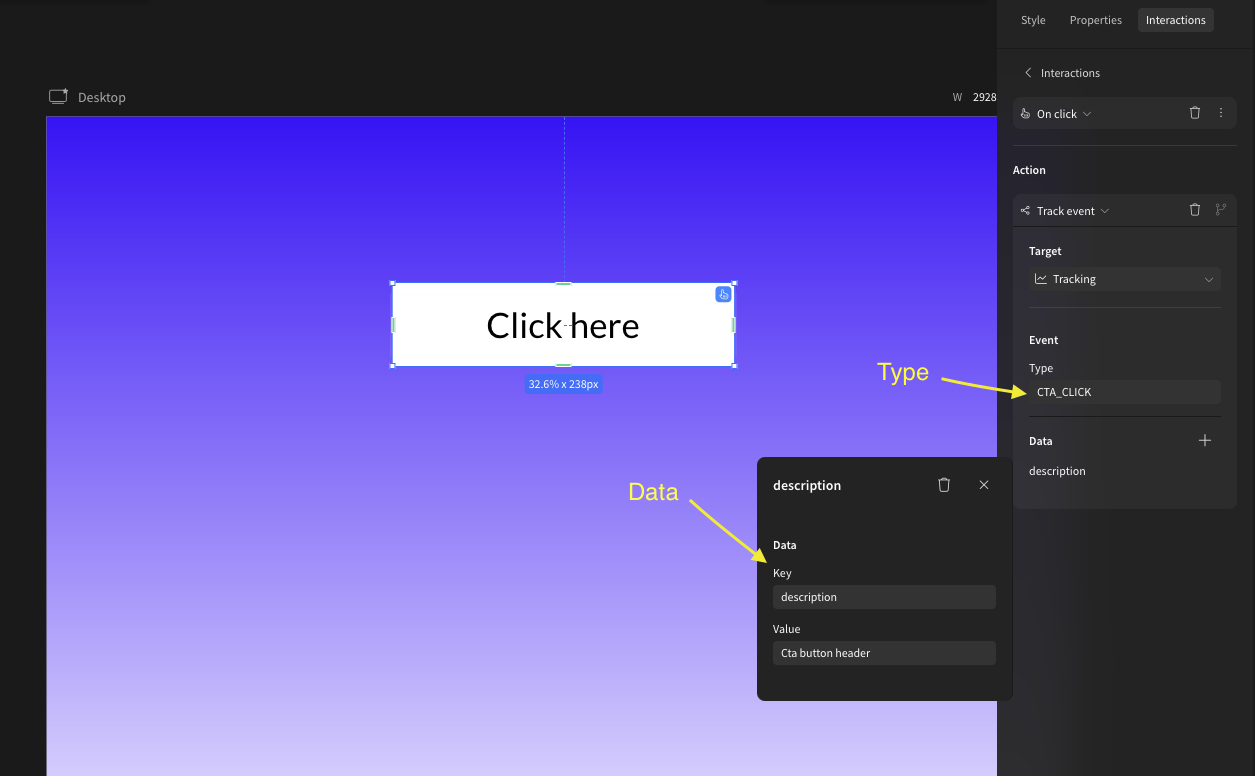
Custom events can be added using interactions. For these events, the type and data are defined by the designer within the design editor. Custom events can be linked to various interaction triggers, such as onVisible, onScroll, and more. They are typically used for tracking call-to-action (CTA) interactions.